Mobile Device Security: The Settings Most People Never Check
A Report by CYS Global Remit Network Admin Support Team
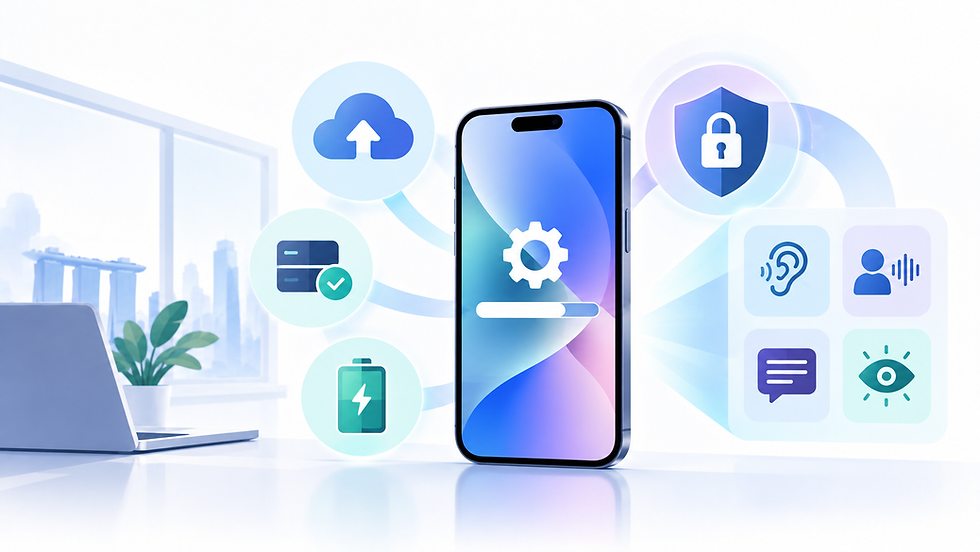
Your smartphone holds more sensitive information than most computers — banking apps, personal messages, photos, work email, and access to almost every account you own. These are the security settings that are worth five minutes of your time.
Your Phone Is More Sensitive Than You Think
Think about what your phone can access: your bank account, your work email, your personal messages, your location history, your photos, and through password managers or saved credentials, potentially every other account you own. Losing control of your phone — whether through theft, loss, or a compromised app — can have consequences far beyond the cost of the device itself.
The good news is that both iOS and Android include robust security features. The challenge is that many of the most important settings are not enabled by default, or are buried deep in menus that most people never visit.
1. Use a Strong Screen Lock
A six-digit PIN is significantly more secure than a four-digit one — the number of possible combinations increases from 10,000 to 1,000,000. A longer alphanumeric passcode is stronger still. Face ID and fingerprint unlock are convenient and secure options, but you should still set a strong PIN as the fallback — biometric authentication can be bypassed in some circumstances.
On iPhone: Settings → Face ID & Passcode → Change Passcode. On Android: Settings → Security → Screen Lock.
2. Enable Find My / Find My Device
If your phone is lost or stolen, Find My (Apple) or Find My Device (Google) allows you to locate it on a map, remotely lock it, display a message on the screen, or erase it entirely. These features must be enabled before the phone is lost — you cannot activate them after the fact.
iPhone: Settings → [Your Name] → Find My → Find My iPhone (enable all three options)
Android: Settings → Google → Find My Device (toggle on)
CSA Guidance
The Cyber Security Agency of Singapore recommends enabling remote wipe capabilities on all mobile devices as a precaution against loss or theft.
Without this feature enabled, a lost phone may expose all its data to whoever finds it.
3. Review App Permissions
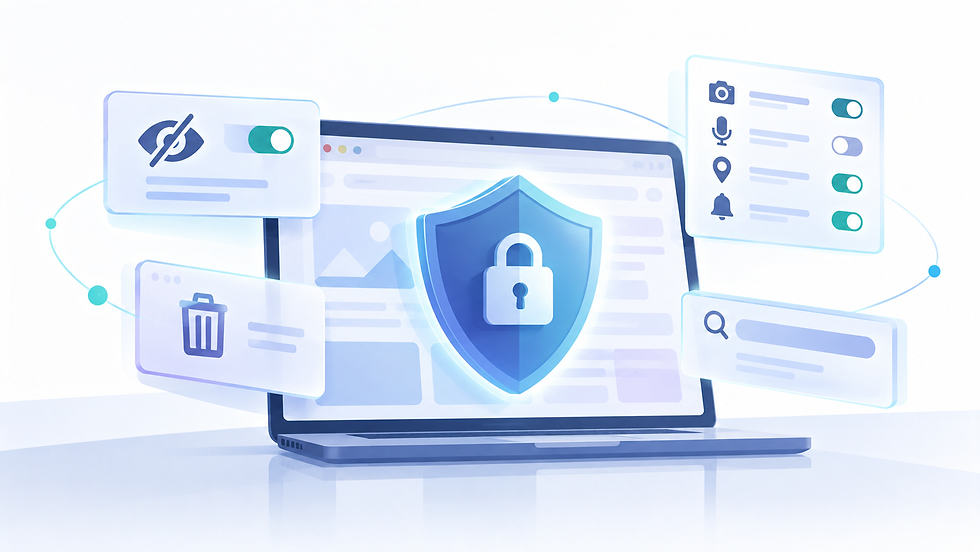
Many apps request access to your camera, microphone, location, contacts, and photos — and most people tap 'Allow' without a second thought. Over time, your phone accumulates apps with permissions far beyond what they actually need. Periodically reviewing these is a worthwhile exercise.
iPhone: Settings → Privacy & Security — review each permission category
Android: Settings → Privacy → Permission Manager
Pay particular attention to location access. Most apps that request location only need it 'While Using the App' — not 'Always'. Denying background location access to apps that don't genuinely need it reduces both privacy exposure and battery drain.
4. Keep Your Operating System Updated
Software updates are the most reliable way to protect against known security vulnerabilities. Both Apple and Google release regular security patches — and critically, they do not always wait for major version releases to do so. Security updates are often released independently and should be installed promptly.
On iPhone: Settings → General → Software Update (enable Automatic Updates for security patches). On Android: Settings → System → Software Update. Enabling automatic installation of security updates ensures you are protected even if you miss a notification.
5. Be Selective About App Sources
On iPhone, apps can only be installed from the App Store, which applies a review process to all submissions. On Android, the Play Store performs security scanning, but Android also allows sideloading — installing apps from outside the Play Store. Avoid sideloading apps from untrusted sources, as this is a common vector for malware.
For both platforms, periodically review which apps are installed and remove any you no longer use. Dormant apps can still collect data and may not receive security updates.
6. Use Mobile Data or a Trusted Network for Sensitive Tasks
Public Wi-Fi networks in cafés, airports, and hotels are convenient but untrustworthy. Avoid performing banking transactions or accessing sensitive accounts on public Wi-Fi without a VPN. Your phone's mobile data connection (4G/5G) is significantly more secure than an open public network for sensitive activities.
Sources
Cyber Security Agency of Singapore (CSA) — Mobile Device Security Tips: https://www.csa.gov.sg/our-programmes/outreach/sg-cyber-safe-programme
Apple — Security Content Updates and Privacy Settings: https://support.apple.com/en-sg
Apple — Use Face ID on iPhone: https://support.apple.com/en-us/111773
Microsoft / Google — Find My Device: https://support.google.com/android/answer/6160491
CSA — SG Cyber Safe for Consumers: https://www.csa.gov.sg/our-programmes/outreach/sg-cyber-safe-programme