Cloud Backup: The Rule Most People Know — and Nobody Follows
A Report by CYS Global Remit Network Admin Support Team
The 3-2-1 backup rule has been a cornerstone of data protection for decades. Most people have heard of it. Almost no one actually follows it. Here's why it matters, and how to set it up with tools you already have.
The Backup Problem
Data loss is not a matter of if — it is when. Hard drives fail. Phones get dropped, stolen, or dunked. Ransomware encrypts files. Accidental deletion happens to everyone. The question is whether you have a copy when it does.
Most people assume they are safer than they are. 'It's saved on my laptop' is not a backup. 'It's on my phone' is not a backup. A backup is a separate copy of your data, stored independently from the original — so that if one copy is lost or damaged, the other survives.
The 3-2-1 Rule Explained
The 3-2-1 backup rule is a simple framework developed by data protection professionals and endorsed by cybersecurity agencies including the Cyber Security Agency of Singapore (CSA):
3 copies of your data — one original and two backups
2 different types of storage media — for example, a local hard drive and a cloud service
1 copy stored offsite — physically separate from your home or office, so a fire, flood, or theft cannot destroy all copies simultaneously
A cloud backup inherently satisfies the 'offsite' requirement, which is one of the strongest practical arguments for using cloud storage as part of your backup strategy.
Why Offsite Matters A flood, fire, or burglary can destroy a computer and its external backup drive at the same time if they are in the same location. Cloud storage survives physical disasters because your data lives on servers elsewhere.
iCloud for Apple Users
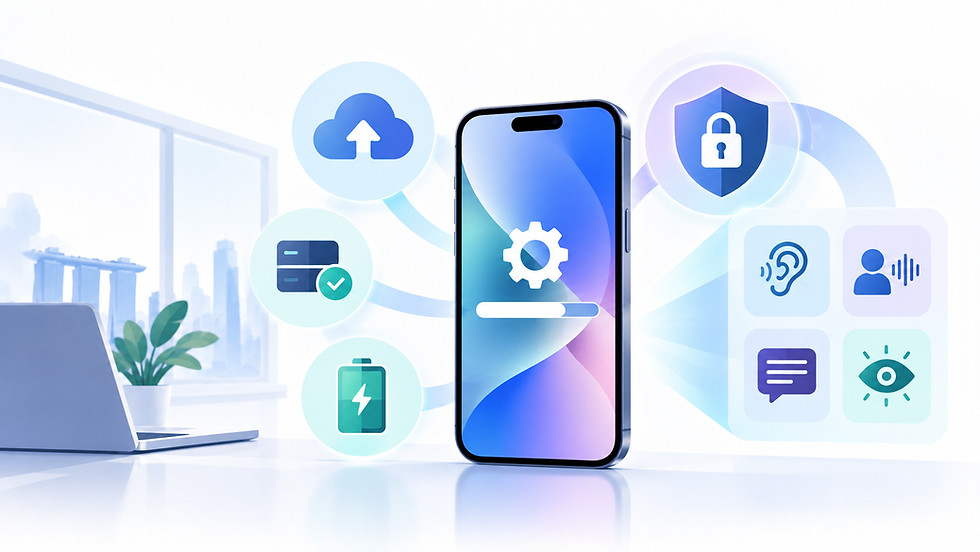
Apple's iCloud offers seamless backup for iPhone, iPad, and Mac. On iPhone and iPad, iCloud Backup automatically backs up your device when it is connected to Wi-Fi, plugged in, and locked — typically overnight. This covers your apps, photos, settings, and most app data.
For Mac users, iCloud Drive syncs documents and Desktop folders to the cloud, with iCloud Photos backing up your entire photo library. The basic 5GB plan is free; plans start from S$1.48 per month for 50GB and scale to 2TB for S$14.98 per month.
Enable iCloud Backup on iPhone or iPad via Settings → [Your Name] → iCloud → iCloud Backup. On Mac, enable iCloud Drive in System Settings → [Your Name] → iCloud.
OneDrive for Windows and Microsoft 365 Users
Microsoft OneDrive integrates directly with Windows and automatically backs up your Desktop, Documents, and Pictures folders to the cloud. For Microsoft 365 subscribers, 1TB of OneDrive storage is included. The free tier offers 5GB.
OneDrive also includes version history, which means if a file is accidentally overwritten or encrypted by ransomware, you can restore a previous version. Enable OneDrive backup via Settings → System → OneDrive on Windows 11.
The Limitation of Cloud-Only Backup
Cloud backup alone does not fully satisfy the 3-2-1 rule. A local backup — an external hard drive or NAS (Network Attached Storage) device — provides faster recovery for large amounts of data and works even if your internet connection is down or your cloud account is compromised. For complete protection, maintain both a local external drive backup and a cloud backup.
For businesses, the CSA recommends a formal backup policy that specifies what data is backed up, how frequently, where backups are stored, and how recovery is tested. Testing your backup — actually restoring from it to confirm it works — is often overlooked but essential.
What to Back Up
Not everything needs to be backed up, but the following categories should be prioritised:
Photos and videos — irreplaceable personal memories
Work documents and projects
Financial records and tax documents
Passwords (via a password manager export stored securely)
Email archives, if hosted on a personal server
Sources
Cyber Security Agency of Singapore (CSA) — Data Backup Best Practices: https://www.csa.gov.sg
Apple — iCloud Backup Overview: https://support.apple.com/en-sg/108770
Apple — Back Up Your Mac with Time Machine: https://support.apple.com/en-sg/104984
Microsoft — Back Up and Restore in Windows: https://support.microsoft.com/en-us/windows/back-up-and-restore-your-pc-ac359b36-7be4-3dfa-6189-3d00cd8e3b06
Microsoft — OneDrive Backup: https://support.microsoft.com/en-us/office/back-up-your-folders-with-onedrive